What does the SEA Optimizer module do?
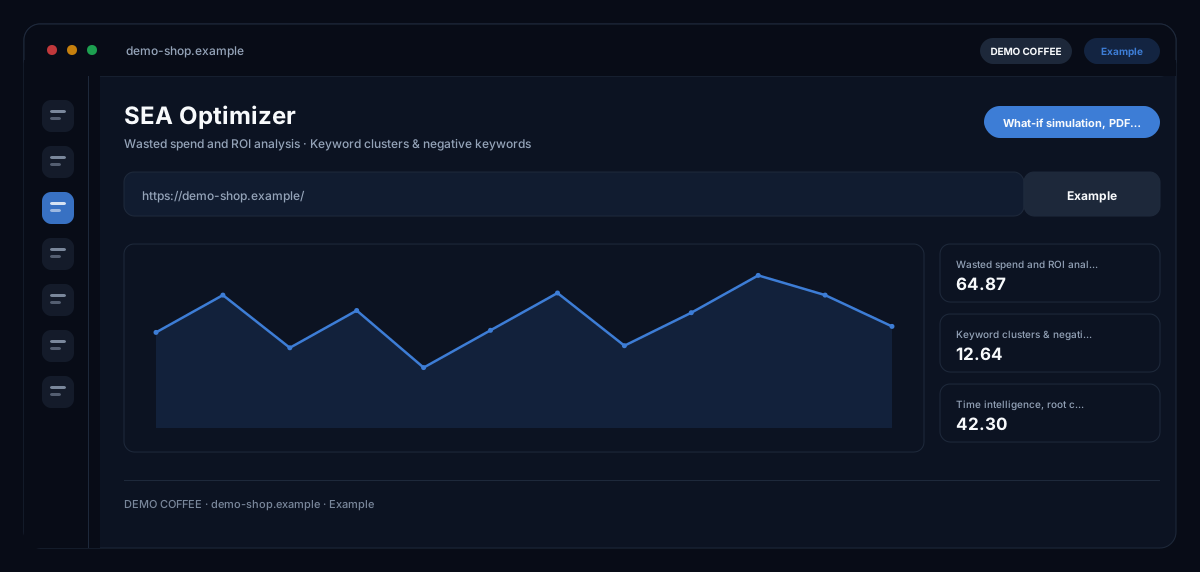
The SEA Optimizer by ecomDNAI analyses your Google Ads account in depth — wasted spend, keyword clusters, negative keywords, time intelligence, root-cause analysis, competitor benchmark — and uses the what-if simulator to work out budget changes before you move money.
Your account comes in via CSV export or directly through the Google Ads interface. From there around 17 analyses are available — from wasted spend through keyword clusters and time intelligence to the competitor monitor. The what-if simulator does the maths on changes before you move any money.
How it works
- Connect the account: upload a CSV or link the Google Ads interface
- Pick an analysis — performance, channel, diagnostics
- Run changes through the what-if simulator and output a report
What you get
- Wasted spend and ROI analysis
- Keyword clusters & negative keywords
- Time intelligence, root cause, benchmark
- What-if simulation, PDF report, history
Typical use cases
Where does the budget leak?
You upload the campaign report as CSV or connect the Google Ads API. The evaluation shows wasted spend, search terms without conversions and campaigns that only generate cost — with an account health score and concrete improvements.
Reallocate budget before it goes live
In the what-if simulator you shift the budget per campaign with sliders and see current against simulated; budget guardrails keep the change within bounds. Only when it fits do you transfer it to your account.
Get negative keywords into the account
From search term mining and keyword clusters comes a list of negative keywords that you export as CSV in Google Ads Editor format. Dayparting shows at which hours and days your ads work.
Who it's for
Shops and brands with running Google Ads campaigns, SEA leads who want to understand an account beyond the interface, and agencies auditing accounts for clients. The optimizer analyses and simulates — changes in the account you make yourself.
Frequently asked questions
Which evaluations are there?
Wasted spend and ROI, keyword clusters and keyword intelligence, negative keywords, search term mining, time intelligence (dayparting), root-cause analysis, competitor benchmark and monitor, retargeting, shopping analysis, ad copy doctor, account health score, campaign comparison and history.
How do the data get in?
As a CSV or TSV export from Google Ads at campaign level — the module explains the way — or directly through the connected Google Ads API. For search term mining you upload the search terms report as a second file.
What if my export is faulty?
The analysis checks the data and warns: unrealistic click-through rates, swapped columns, duplicate campaign names, missing costs or mixed Display and Performance Max traffic. Every figure refers explicitly only to the parts analysed, not to the whole account.
Is the simulation a forecast?
It is a calculation from your own metrics — current against simulated — and no guarantee. If cost values are missing, the module says that the ROAS simulation is unreliable for those campaigns.
How do I pass the result on?
As a PDF report; earlier runs stay in the history and can be compared. Negative keywords you export as CSV for Google Ads Editor.
What does an analysis cost?
The analysis is billed in credits — through a plan or pay-as-you-go; the module shows the requirement before the start. Simulator, history and export are part of the result.